
Shopify has announced one of its biggest updates: Online Store 2.0. With Online Store 2.0 themes, you can easily place the Tables on your product pages using app blocks.
In this article, we'll walk you through the steps to integrate the Prime Tables into your 2.0 store.
Note: If you have problems with adding the tables or want to change the position of the tables or for any other request please raise a support ticket here. We will take care of it.
Steps
1. Open your Shopify admin.
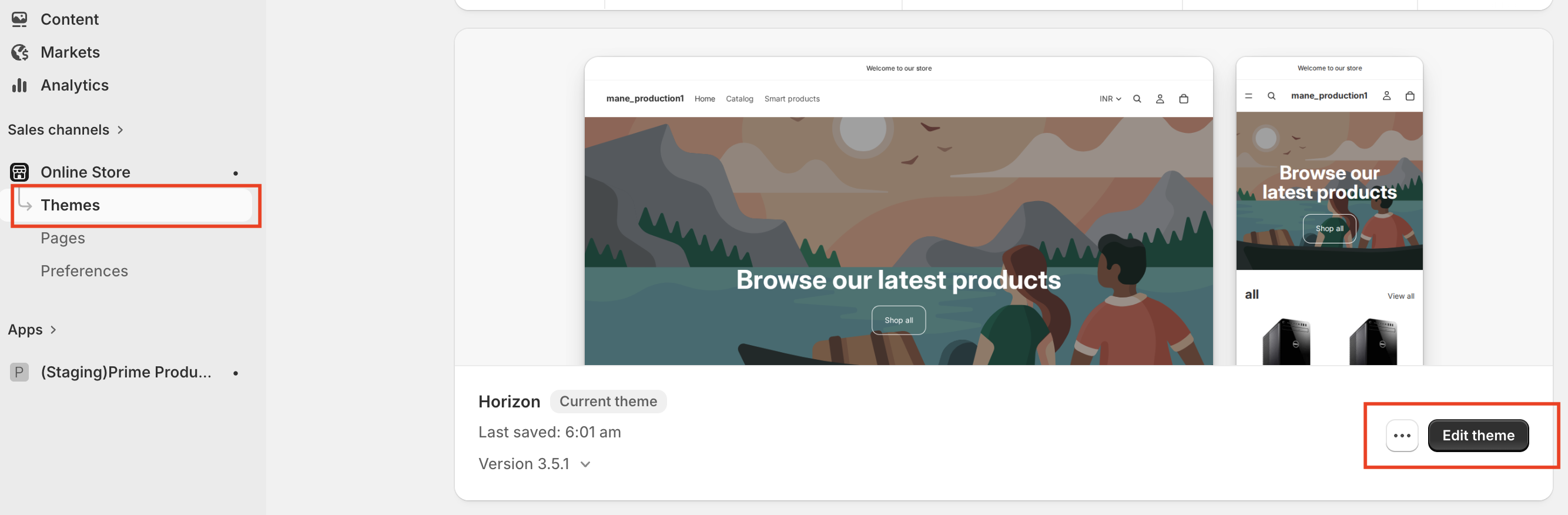
2. Go to Online Store >Themes > click Edit Theme.
3. Select a product template. 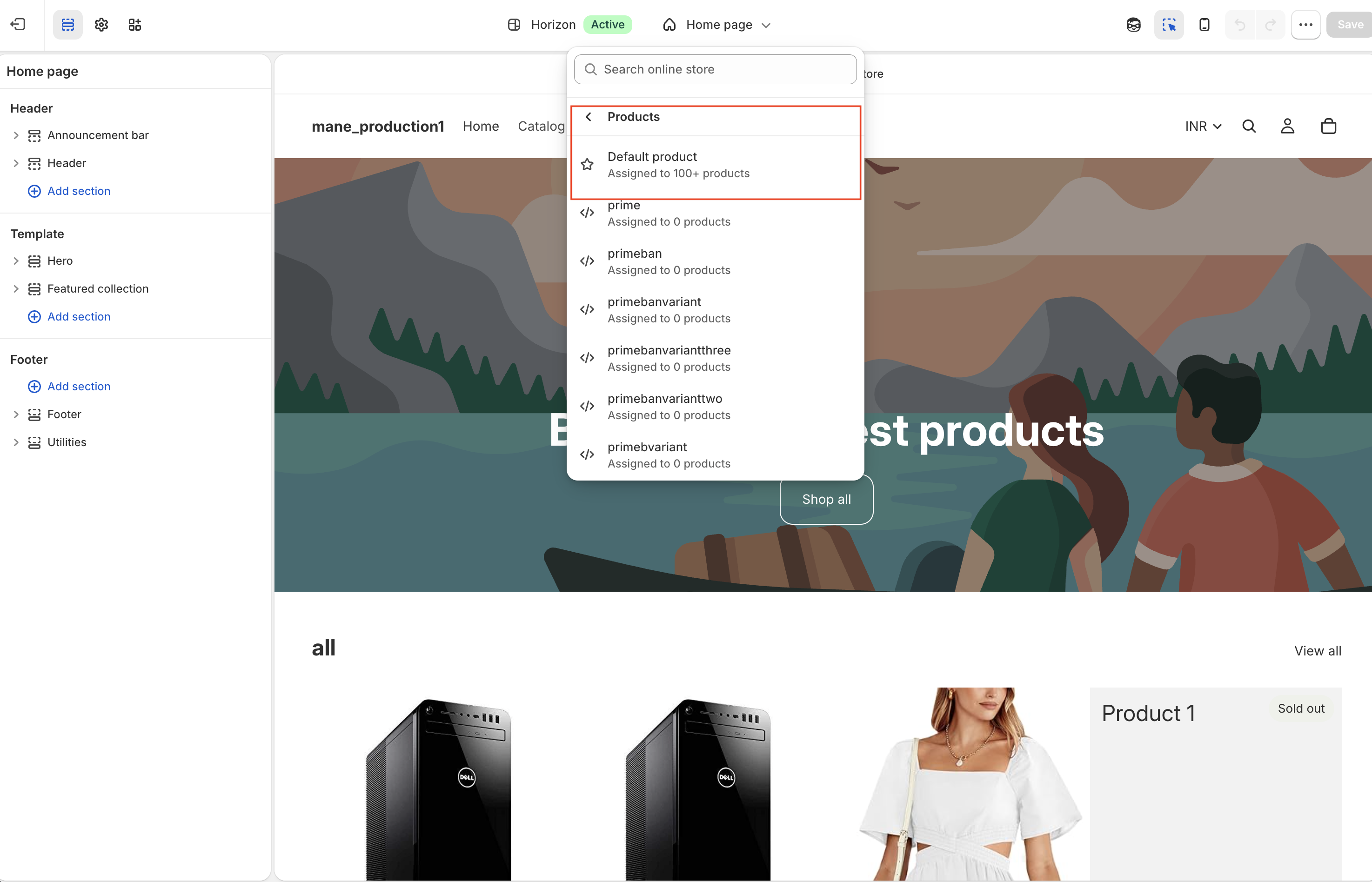
4. Next, click Add Block from the left sidebar and select Prime App block under Apps.
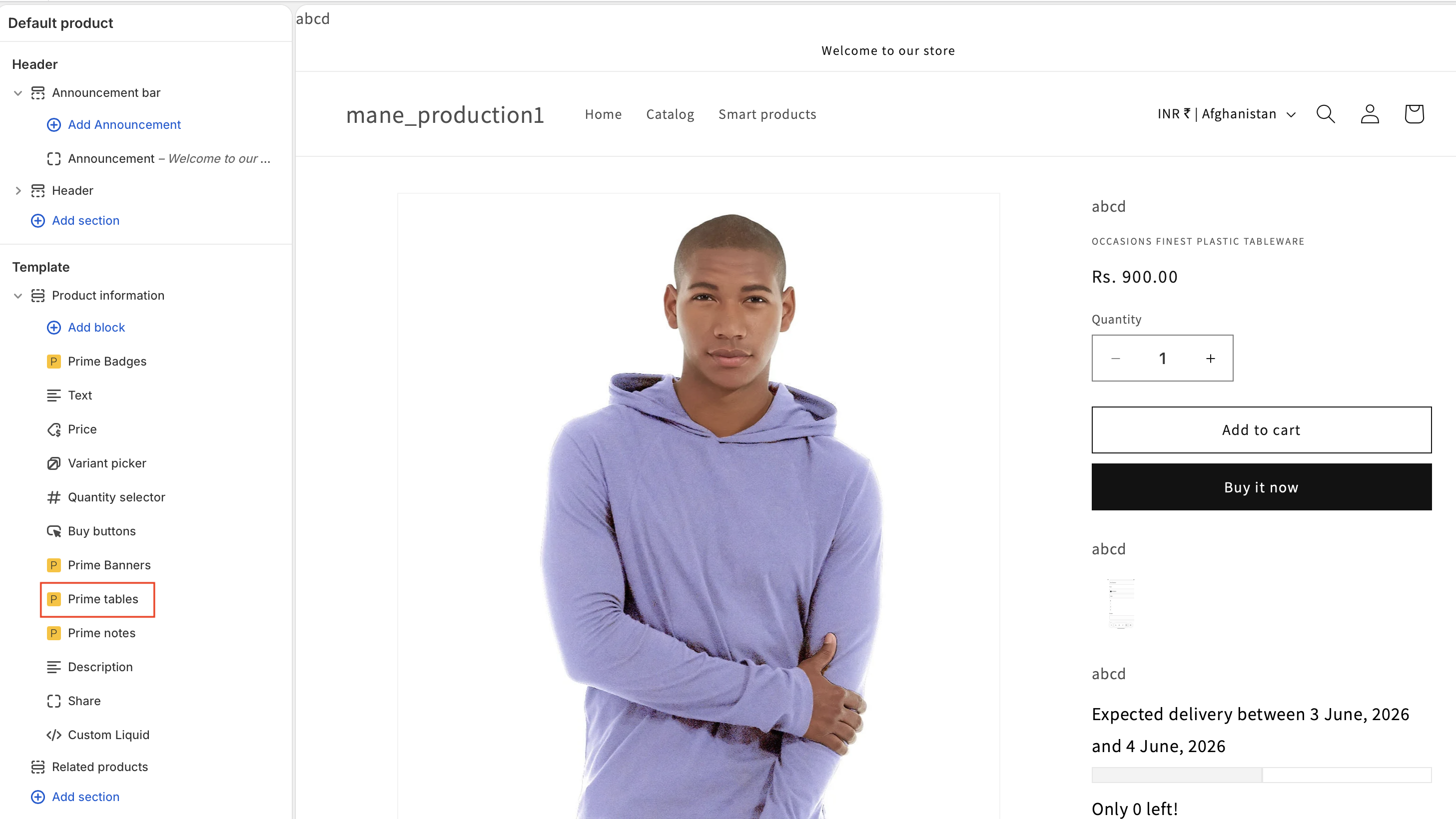
5. Drag and drop the block to the location you want to display the Tables. We recommend placing it above the product description.
6. The Tables can be stylized via app block options (optional):
- Group: Select the Tables group that you want to display
- OuterClass: CSS classes passed using this parameter will be applied to the DIV containing the Tables
- OuterStyle: Pass any custom CSS elements using this parameter and they will be applied to the Tables container.
7. Hit the save button.
8. The Tables will be visible on the product pages.
If you have problems with adding the button or want to change the way the button looks or for any other request please raise a support ticket here. We will take care of it.